Start Setting Up Your Idiocom Store
Complete your store setup with an easy-to-follow process designed for every business owner.
After creating your first store, return to your Idiocom Central Dashboard. Here you can see the stores connected to your account and access each one individually.
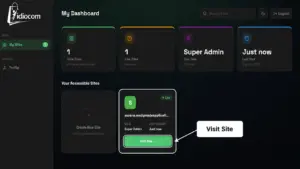
1. Open Your Store
Find your newly created store under Your Accessible Sites and select Visit Site.
This takes you into the Store Dashboard, where you can start preparing your store.
2. Choose How You Want to Start
When you enter your store for the first time, Idiocom gives you two options : Apply a Ready-Made Theme or Start from Scratch.
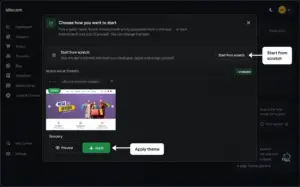
Continue with a Ready-Made Theme
Choose an available theme if you want a faster starting point.
You can preview the theme first. When you find the one you want, click Apply.
Idiocom will ask you to confirm your choice. Click OK to continue.
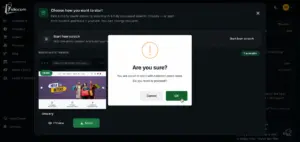
The selected theme, demo content and media will then be added to your store automatically. This may take a few moments.
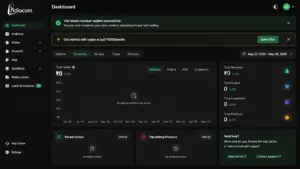
Once complete, your Store Dashboard is ready.
You can keep the theme as your starting design or customize it later by changing elements such as:
- Logo
- Banners
- Images
- Store content
- Pages and other storefront elements
You can then continue adding your own products, payment gateway, shipping settings and domain before you start selling.
Start From Scratch
If you want to build your store from the beginning, choose Start from Scratch.
Idiocom will guide you through the complete setup process with an easy step-by-step wizard. You’ll be guided to add your store details, configure essential settings, add products and prepare your storefront — without needing technical knowledge.
Follow each step as Idiocom helps you turn your idea into a ready-to-launch online store.
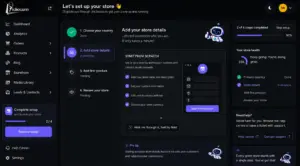
3. Continue Your Store Setup
Once you enter your Store Dashboard, Idiocom’s setup wizard will guide you through the remaining steps to complete your store.
The guided setup will help you complete:
Choose your country — Already completed during store creation.
Add your store details — Add your business information and configure your storefront details.
Add your first product — Upload your product information and prepare your catalogue.
Review your store — Check your setup before launching your online store.
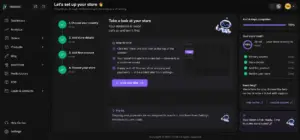
Simply follow the instructions provided by Idiocom and complete each step at your own pace. Once all setup steps are completed, your store will be ready for customers.
Next: Add Your Store Details
Quick Steps
- 1 Open Your Store
- 2 Choose a Theme or Start from Scratch
- 3 Add Your Store Details
- 4 Add Your First Product
- 5 Review Your Store