How to Add & Manage Your Products
Add products, manage their details and keep your catalogue ready for customers.
1. Add a New Product
Go to Merchant Dashboard → Products → Add Product. Fill in the required product details, including product information, images, pricing, inventory, shipping, specifications and SEO details.
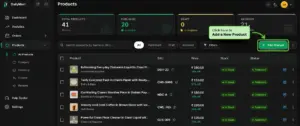
Once everything is complete, click Publish Product to make the product live on your storefront.

2. Edit an Existing Product
Go to Products → All Products to view your listed products. Find the product you want to update, click the three-dot menu on the right and select Edit Product. Make your changes, then click Publish Product to make the updates live on your storefront.
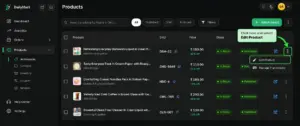
Keep your catalogue updated anytime as your products, pricing and inventory change.
Quick Steps
- 1 Open Products
- 2 Click All Product
- 3 Add a New Product
- 4 Enter Product Details & Images
- 5 Publish Your Product
- 6 Edit Products Anytime
Tip: Keep your product information, images, pricing and inventory up to date so customers always see accurate details on your storefront.