Customize Your Store Design
Personalize your storefront from layout to colours — all without writing a single line of code.
Personalize your store with the right layout, colours, branding and content. Choose a ready-made theme or start from scratch, then customize your storefront to match your brand — no coding required.
1. Theme Settings
Start with your store’s overall look. Use Theme Settings to adjust the theme style, colours and other visual elements that define your storefront.
Go to the Merchant Dashboard → Settings → Store Settings → Theme Settings, then customize the Theme Color, Secondary Color and Footer Color to match your storefront. Click Save Settings to apply your changes.
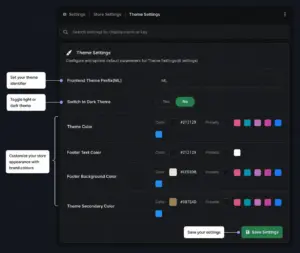
Save your changes and preview how your new storefront style looks to customers.
2. Storefront Preview
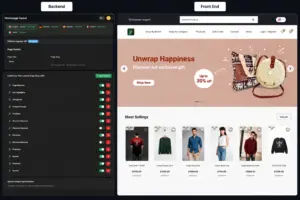
See how your changes come together in your actual storefront. Preview the customer-facing experience and understand what you edit and what your customers see.
Select your preferred language and use the section controls to show, hide or rearrange the content you want on your homepage. You can update your storefront design and appearance anytime as your business grows.
3. Change Your Store Banner
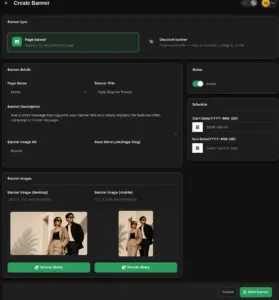
Customize your storefront banner to match your brand, campaign or featured products.
Where to go:
Merchant Backend Dashboard → Storefront → Banner → Create Banner→Fill in the required details → Save Banner
Add your banner heading, subheading, description and publish status, then design and create the banner for your storefront.
4. Update Your Brand & Site Information
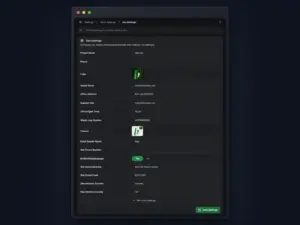
Personalize your store with your brand logo, contact details and other essential site information.
Where to go:
Merchant Backend Dashboard → Settings → Store Settings → Site Settings
Here, you can update your logo, favicon, email, phone, address, support details and more.
After making changes, click Save Settings.
The Journey
Theme Settings → Customize → Preview → Your Branded Store
This makes the process clear: set your visual style, customize the details, preview the result and turn it into a storefront that represents your brand.