Set Up Tax
Set the right tax rates for your products and manage them easily from your store settings.
Set the tax rates that apply to your products and keep them active or inactive as needed. Idiocom lets you create tax rules based on your local government requirements and apply the appropriate rate to your products.
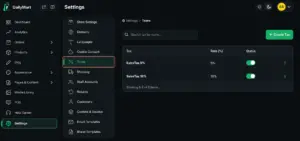
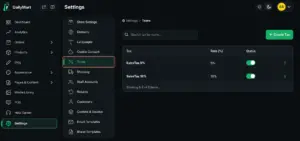
From the Merchant Dashboard, go to Settings → Taxes. You can see existing tax rates such as 5% and 18% and use the appropriate rate when adding or managing products.
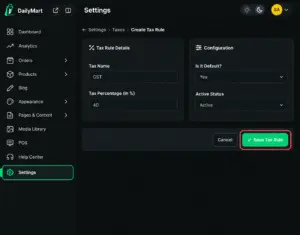
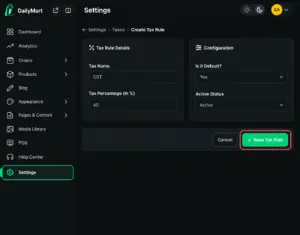
To create a new tax rule, click Create Tax, enter the Tax Name, Tax Percentage, Default Status and Active Status, then click Save Tax Rule. The new tax will appear in your tax settings and can be activated or deactivated anytime.
This keeps your product pricing aligned with the tax rules that apply to your business.
Quick Steps
- 1 Open Settings
- 2 Go to Taxes
- 3 Select Create Tax
- 4 Enter the tax details
- 5 Click Save Tax Rule
- 6 Activate or deactivate the tax when needed